Before you start
Supported conversation pages: ChatGPT, Gemini, Claude, and Codex web at chatgpt.com/codex. Codex desktop is not supported.
Choose Notion when you want a page in an authorized workspace. Choose PDF, Markdown, or HTML when you want the conversation to stay local in Chrome.
Export a conversation
Install ChatPort from the Chrome Web Store
Open the official listing, choose Add to Chrome, review the permissions, and pin ChatPort from Chrome’s extensions menu.
Open a supported AI conversation
Open the conversation page you want to keep. For a long lazy-loaded chat, scroll through the conversation before reopening ChatPort.
Review the conversation before export
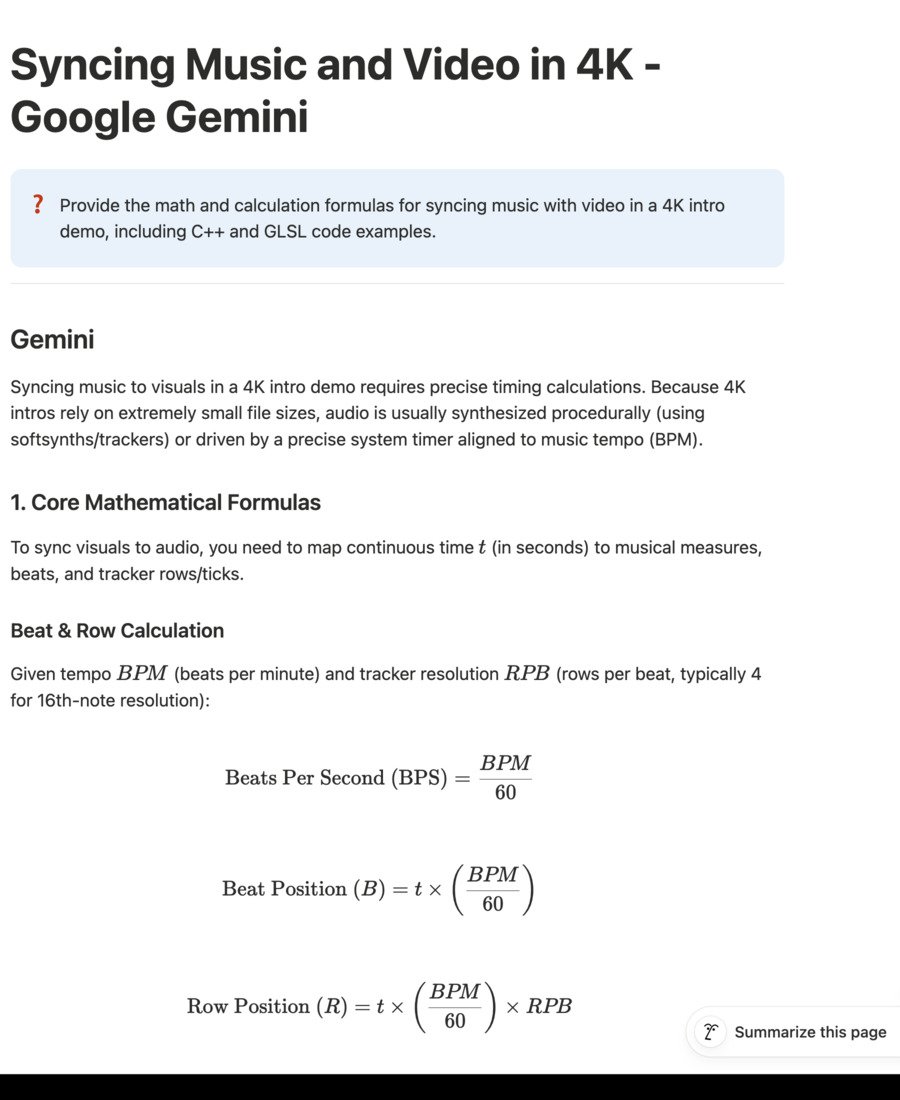
ChatPort identifies the provider and shows a document title, message count, character count, and image-capture status. Confirm these look plausible before continuing.
Choose a destination and verify the result
Export text to Notion, open the PDF print view, or download Markdown or standalone HTML. Open the created result and check the information you need.
Export to Notion
- Open Notion connection and choose Connect another workspace.
- Use Notion’s authorization screen to choose the workspace and pages the connection can access.
- Return to ChatPort, choose a workspace and top-level destination, or leave Workspace home selected.
- Choose Export text to Notion.
- Open the new page and verify text, equations, code, tables, and links.
You do not paste an integration token or parent page ID into ChatPort. Notion controls which pages the connection can access.
Save files locally
All three local formats are created in Chrome and do not send conversation content to the ChatPort backend.
Images and diagrams
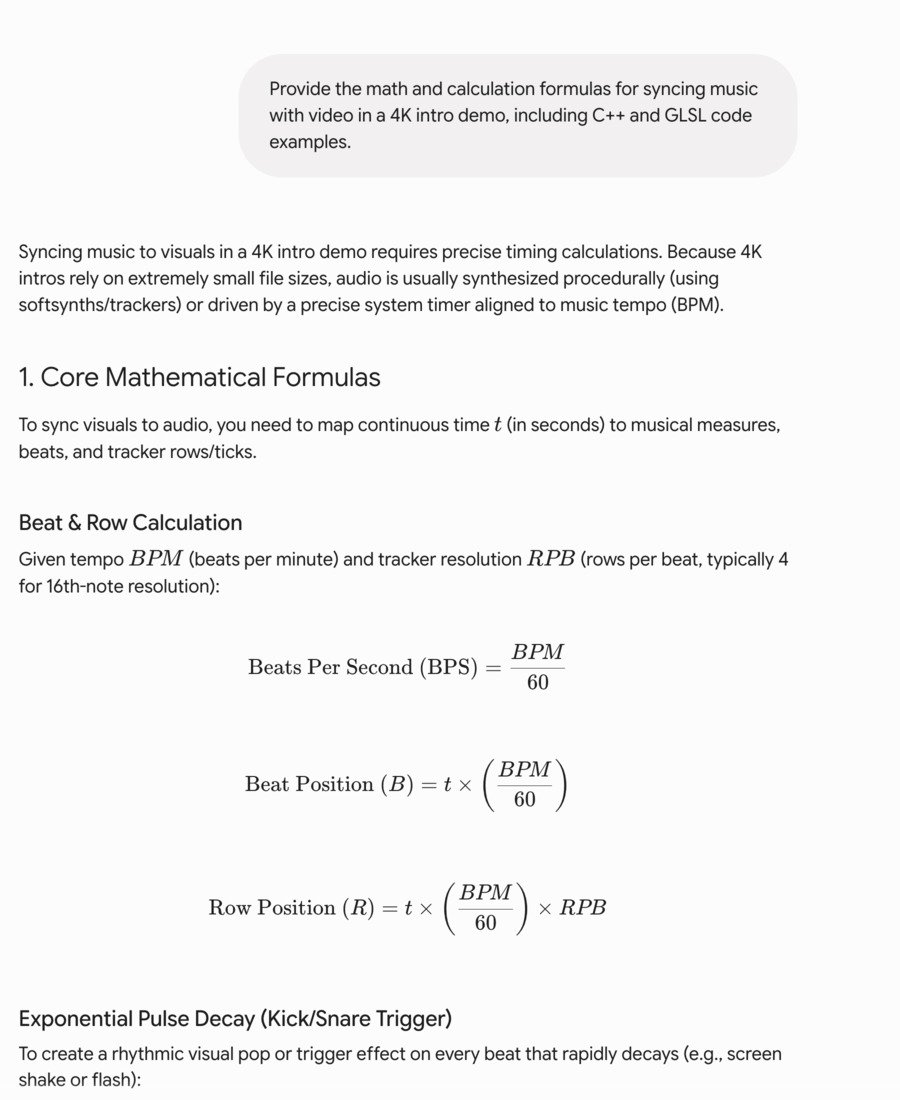
ChatPort detects useful visible images, SVGs, canvases, charts, and diagrams for local files. If it misses a visible item, choose Capture an image for local files and draw a box around it. Very tall or wide visuals can be clipped by the viewport.
Current limitations
- Provider page layouts change over time and may need a ChatPort update.
- Captured images are not included in current public Notion exports.
- The Notion destination list includes up to 100 recently edited top-level pages accessible to the connection.
- There is no export history, batch export, or Cursor JSON import yet.